Discretion Calculator
Summary
An installable web application providing an extremely streamlined calculator
to determine the latest on blocks times, with and without use of discretion,
for easyJet pilots and cabin crew operating under the UK AOC FTL
scheme.
You will need to click on the “Help” button when using for
the first time — minimum effort data entry has been prioritised.
Links
- Link:
-
https://apps.hursts.org.uk/disc/
- Version:
- 1.0.5 (1st August 2026)
Installing
Web applications are supported on desktop by recent versions of Firefox,
Chrome, Edge and Safari, on Android by Chrome and on iOS/iPadOS by Safari, as
well as by most other modern browsers.
The main benefit of a web application is that it can be used offline. Simply
visiting the link at the top of the page while online will automatically make
the application available offline for future sessions.
“Installing” the application additionally places an icon on the home screen
of your device. In general this is just a minor convenience — you could equally
bookmark the page in your browser etc. — except that on Apple
devices, if you don't “show intent” by installing to the home screen,
the application will be wiped from your device after one week of not being used
and you will lose the offline capability.
There is, unfortunately, no standardisation of the installation process; each
browser has its own way of doing it. I give details below of the process on the
devices that I have access to, which should hopefully cover most use cases. If
not, a web search will likely provide the details for your browser and device of
choice.
iPadOS 26 (includes company iPad for easyJet pilots)
Open the link at the top of the page in Safari. Note
that no other browser will work — on Apple devices all other available
browsers are just wrappers around an inferior version of Safari which lacks
the required features.
Tap the “Share” icon:
-
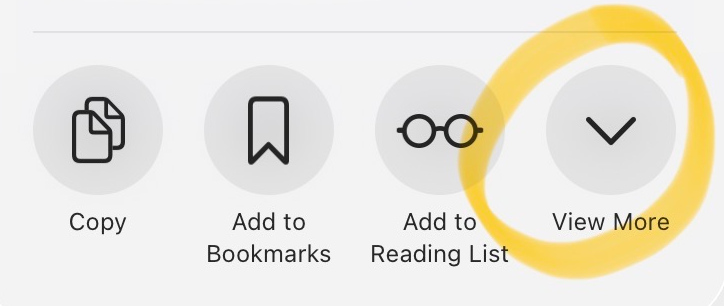
Tap “View More”:
-
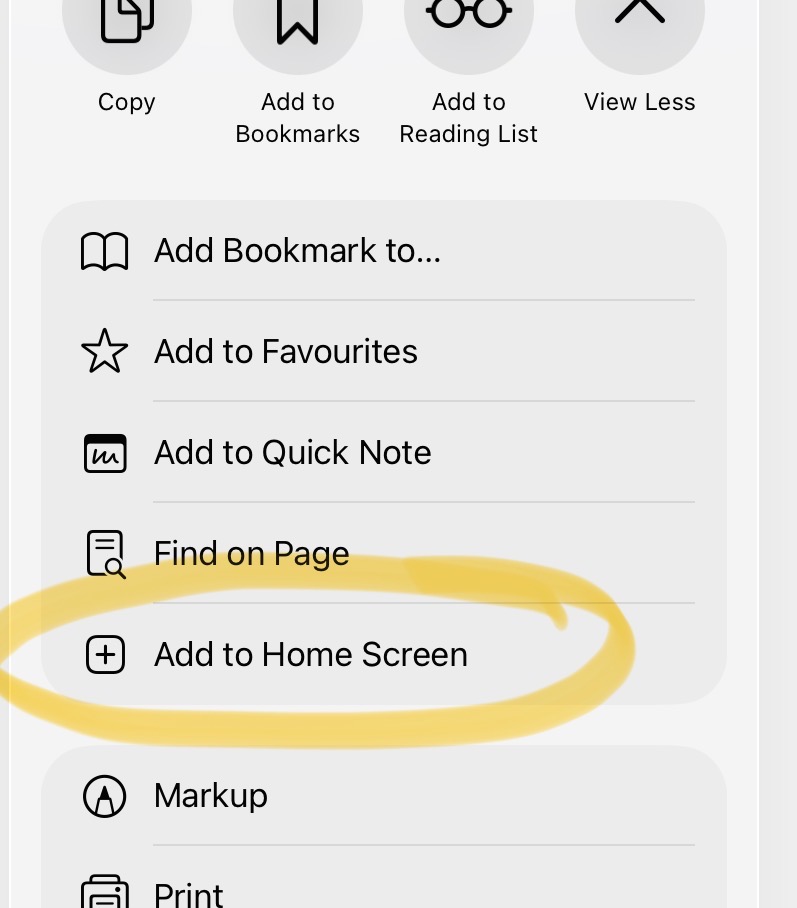
Tap “Add to Home Screen”:
Tap the “Add” button in the top right corner of dialog that appears.
The icon which will be added is near the top left corner.
Find the new icon on your home screen and tap it to open the
application.
You’re done! You can check the installation worked by closing the
application, selecting flight mode, then attempting to open it.
Chrome on Android
Chrome will usually present a mini dialog offering to install a web
application when it is encountered for the first time — all that is needed is
to click “install”.
You can also install later by choosing “Install and create shortcut” from
Chrome’s main menu, as accessed using the three vertical dots on the far
right of the toolbar.
Chrome on Chromebook
Chrome adds an “Install” button on the right side of the URL bar. Click
this, then click “Install” on the popup dialog.
Alternatively, open the main menu with the three veritcal dots on the right
side of the toolbar, select “Cast, save and share”, then select “Install page
as app”.
Updating
To update the application to the latest version, simply open or refresh the
page when online. If you have installed it, there may not be an obvious way of
refreshing the page, in which case close the application and restart it.
The only difficulty is knowing that a new version is available — if you only
use the application offline, which is, after all, the point of installing it, it
never gets the opportunity to check for updated versions of itself. If you would
like to be notified by email when significant new versions become
available, please
submit an email address.
Licencing
- License:
-
GPL Version 3+
- Source code:
-
https://github.com/JonHurst/discretion